How to Open Tokyo's Ticket Gates With Your iPhone
In the reel I walked through Tokyo stations with an iPhone that opens the ticket gates without being unlocked. No Face ID, no app, and it keeps working for a while after the battery gives out. It looks like a trick, but it comes down to one setting in Wallet that most people never set up properly.
This is the long version. By the end you will have a Suica, PASMO or ICOCA card in Apple Wallet, set to Express Mode, topped up with a card that works, and you will know what happens when your battery dies and when you fly home.
Why the gates open so fast
The chip doing the work is FeliCa, a contactless technology from Sony. It is not the same flavor of NFC you use to tap a credit card abroad. Suica has run on it since 2001, and JR East still celebrates that year on its Suica pages.
Apple first put FeliCa in the Japanese iPhone 7. From the iPhone 8 on it is in every model, wherever you bought it. Apple lists iPhone 8 or later, or Apple Watch Series 3 or later for transit cards, plus a Japanese iPhone 7 or Apple Watch Series 2 for Suica.
The speed matters because of the crowds. Guinness counts Shinjuku as the busiest station in the world, with an average of 2.7 million people a day in 2022. Suica's gate system is designed to finish a read within 200 milliseconds, as Impress Watch explains. At a full second per person, the lines would back up fast.
Add a Suica, PASMO or ICOCA to Wallet
You need an Apple Account with two factor authentication and a payment card already in Wallet. Then, following Apple's steps:
- Open Wallet and tap the Add button.
- Tap Transit Card and pick Suica, PASMO or ICOCA.
- Tap Add New Card.
- Choose an amount, tap Add, and confirm the payment.
If you already have a plastic card, tap Transfer Existing Card instead. Wallet asks for the last four digits of the card number, and your date of birth only if the card is personalized. Lay the card on a table and rest the top of your iPhone on it until it says Card Added. After that the plastic card stops working, and its deposit is added to your balance. Apple notes that a card holding more than 19,500 yen will not transfer, so spend a little first.
Which one to pick barely matters in Tokyo. They work on each other's gates and in the same shops.
Paying for it with a card from home
Topping up happens in Wallet: tap the card, tap Add Money, pick an amount. It is charged to a credit or prepaid card in your Wallet through Apple Pay. The balance tops out at 20,000 yen, according to JR East.
Mind the clock too. From midnight to 5 a.m. Japan time, Apple says you cannot add cards or add money. That is exactly when you are rushing for the last train with 140 yen on your card, so top up during the day.
Visitors usually get stuck on the payment card. Neither Apple nor JR East publishes a list of foreign cards that work. Some go through, some are declined, and it depends on your bank, not on you. JR East's own Mobile Suica app generally does not accept cards issued overseas, but on iPhone you do not need that app. Wallet is enough.
If you are visiting, JR East also has an app made for you: Welcome Suica Mobile. It issues a Suica you use through Wallet, takes payment through Apple Pay, and needs iOS 17.2 or later. Read its rules before you load it up:
- The card in Apple Pay has to be in your own name.
- Location has to be on, and some countries block issuing or topping up until you land in Japan.
- The card is valid for 180 days from issue. After that the balance expires.
- There are no refunds.
Whichever route you take, you can also top up in cash at machines and shops in Japan that accept Suica charges. I always keep a 1,000 yen note for exactly this.
Turn on Express Mode
This is the part from the reel. With Express Mode on, the phone pays at the gate without waking up, unlocking or asking for Face ID.
Your first transit card gets it automatically. Only one card can have it at a time. To change which one, Apple's path is Wallet, tap the card, the More button, Card Details, then Express Transit Settings. On Apple Watch it is the Watch app on your iPhone, My Watch, Wallet & Apple Pay, Express Transit Card.
Check this if you have more than one Suica. JR East warns that if you set the wrong one as your express card, every ride gets paid from that one.
At the gate, hold the top of the iPhone near the reader on the way in and on the way out. You get a check mark. The gate does not need your phone to have signal or wifi, but the phone does have to be on.
When the battery dies
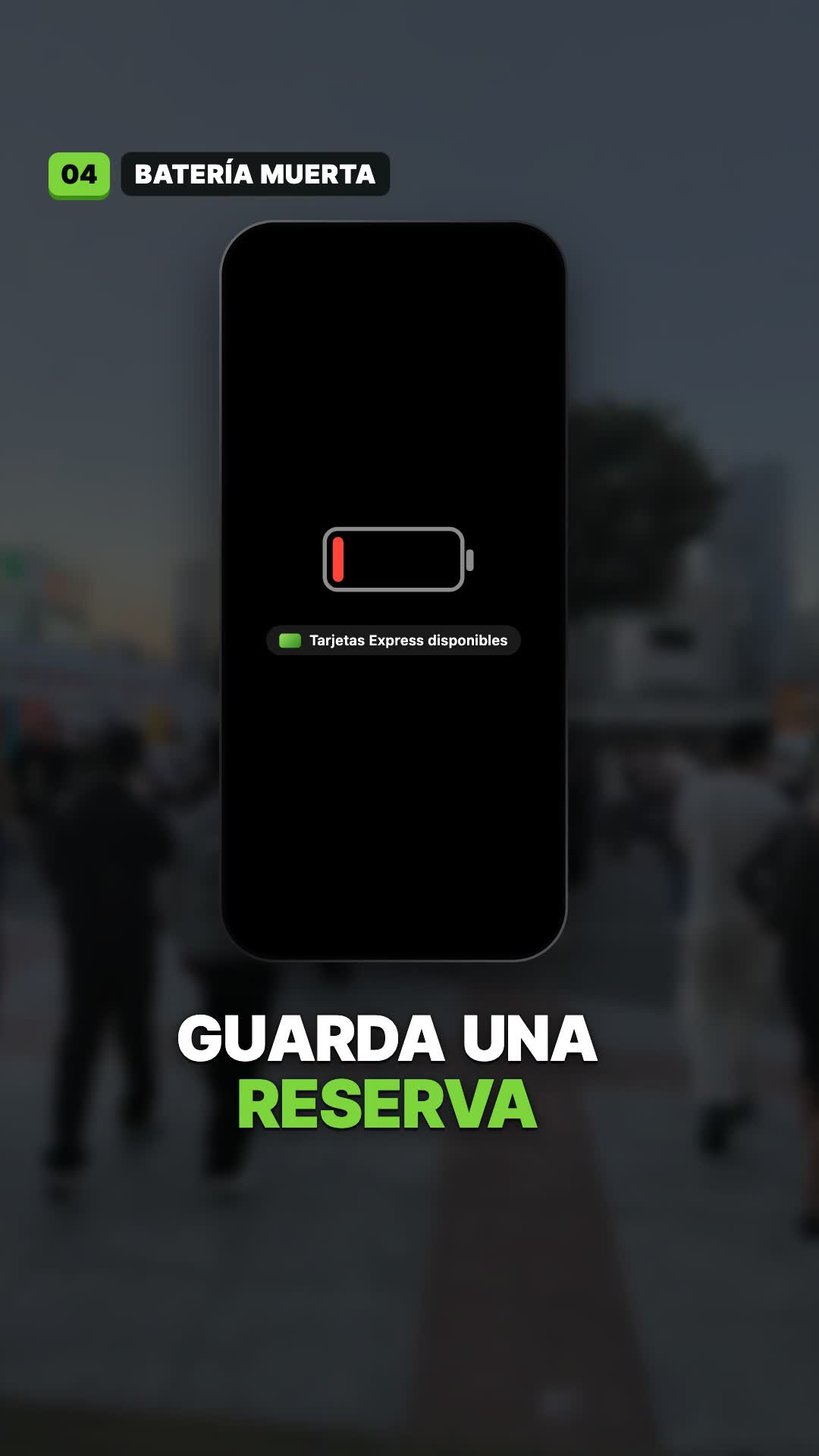
The reel's favorite detail is real, with limits. When your iPhone shuts down because it needs charging, power reserve keeps Express Mode cards working for up to five hours. It works on iPhone XR, XS and later, including the second generation iPhone SE and later.
Apple sets three limits. It only works if the battery ran out, not if you turned the phone off yourself. Pressing the side button to check whether your card still works uses up the reserve. And it only covers Express Mode cards, which is one more reason to set that up properly.
I would not plan around it. It can get you home on a bad night, and you should still charge your phone.
Apple Watch
A card lives on one device at a time. To move it to your watch, open the Watch app on your iPhone, go to Wallet & Apple Pay, and tap Add next to the card. To bring it back, tap the card there and choose Add card to iPhone. Your watch needs a passcode.
Before you fly home
Removing the card from Wallet does not give you your money back. The balance stays saved to your account.
A regular Wallet Suica does not expire quickly. JR East says the balance lapses only after 10 years without use, so the simplest move is to keep it for your next trip, or spend it down at a convenience store on your last day.
If you want a refund, it goes through JR East's Suica app. There is a 220 yen fee, and the balance is paid into a bank account you name, according to JR East's refund page. Do it before you cancel your phone contract. A Welcome Suica Mobile card has no refund at all, so top it up in small amounts.
One last thing. Before your first trip, open Wallet and check which card has Express Mode. It takes ten seconds at home, and at a crowded Shinjuku gate it saves you from being the person everyone walks around.